How to scan documents to PDF on iPhone
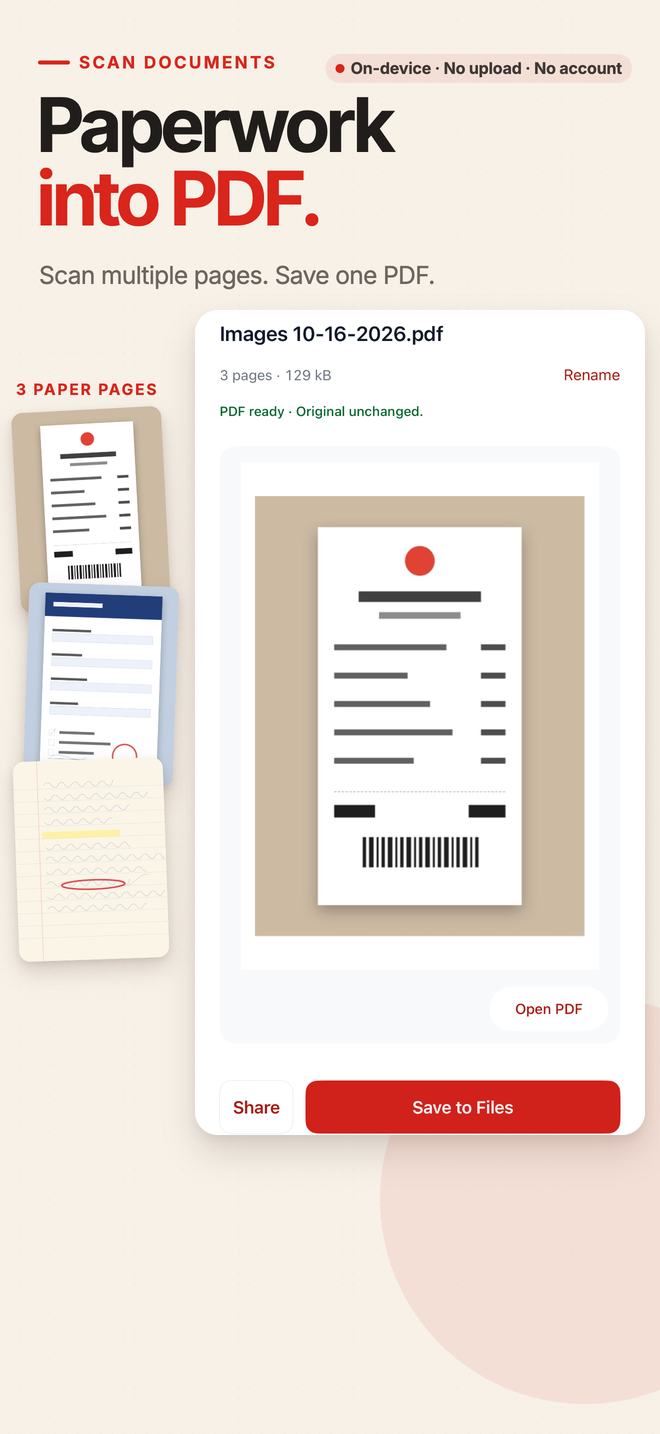
Open Scan Documents in PDF Tools, capture the paper pages, then create and save one PDF. The iPhone document scanner detects and straightens page edges on your device. Review the scan and page layout before generating the result; no app account or document upload is required.
Turn paper pages into one saved PDF
- Open Scan Documents
Use the scan button on the PDF Tools home screen, or choose the scanner inside Images to PDF. Allow camera access when iOS asks.
- Capture each page
Place the paper in good light and keep its edges visible. Scan the pages you need, then review the captures in the system document scanner.
- Review the images
Finish the scan to bring the pages into Images to PDF. Check their order and framing; use manual crop or blank-border auto-trim if needed.
- Choose the PDF layout
Choose A4 or Letter. For a document with one scanned sheet per PDF page, choose 1 image per page. The layout also supports 2 or 4 images per page.
- Create and save the result
Generate the PDF and preview it. Use Save to Files to keep a copy, or Share to send it with the iOS share sheet. Sharing alone is not the same as saving a copy in Files.
Check these choices before you save
Free scan allowance
Free supports up to 10 input images or scanned pages per PDF, without a watermark. The input count is the same whether each output page holds 1, 2 or 4 images. Pro offers higher limits.
Readable capture first
Check focus, glare, shadows and page edges before creating the PDF. Cropping cannot restore text that was blurred or cut off when you scanned it.
One-time Pro is optional
Pro is a one-time purchase for your Apple Account, not a subscription. You can complete a scan within the free allowance without buying it. Store purchases and restoration may need internet access.
Already have a photo?
Use Images to PDF to choose an existing picture from Photos or Files instead of scanning the paper again.
A scanned PDF keeps the page as an image
Local processing
Scanning and PDF creation run on your iPhone. PDF Tools requires no account and includes no ads or analytics SDKs. Choosing to share or save to a cloud location uses the destination you select.
No OCR or text editing
This workflow does not recognize text, create an editable Word document, edit words inside the PDF, or fill in PDF forms. Review the saved PDF before sending it.
Questions about Scan to PDF
Can I scan several pages into one PDF?
Yes. Capture multiple pages, review their order in Images to PDF, and create one PDF. Free supports up to 10 input images or scanned pages per PDF.
Will the scan have a watermark?
No. PDF Tools does not add a watermark to the free result.
Does scanning need an internet connection?
Document capture and PDF creation run locally. Camera permission is required. App downloads, store purchases, and any cloud destination you choose are separate network operations.
Can I select or search the photographed text?
This workflow does not run OCR. The scanned page is an image in the resulting PDF.
Related PDF guides
Scan the next paper document on your iPhone
Start with the free path for up to 10 input images or scanned pages per PDF, with no watermark.
This guide shows the iPhone workflow. Android users can get PDF Tools on Google Play; platform screens may differ.