How to compress a PDF on iPhone
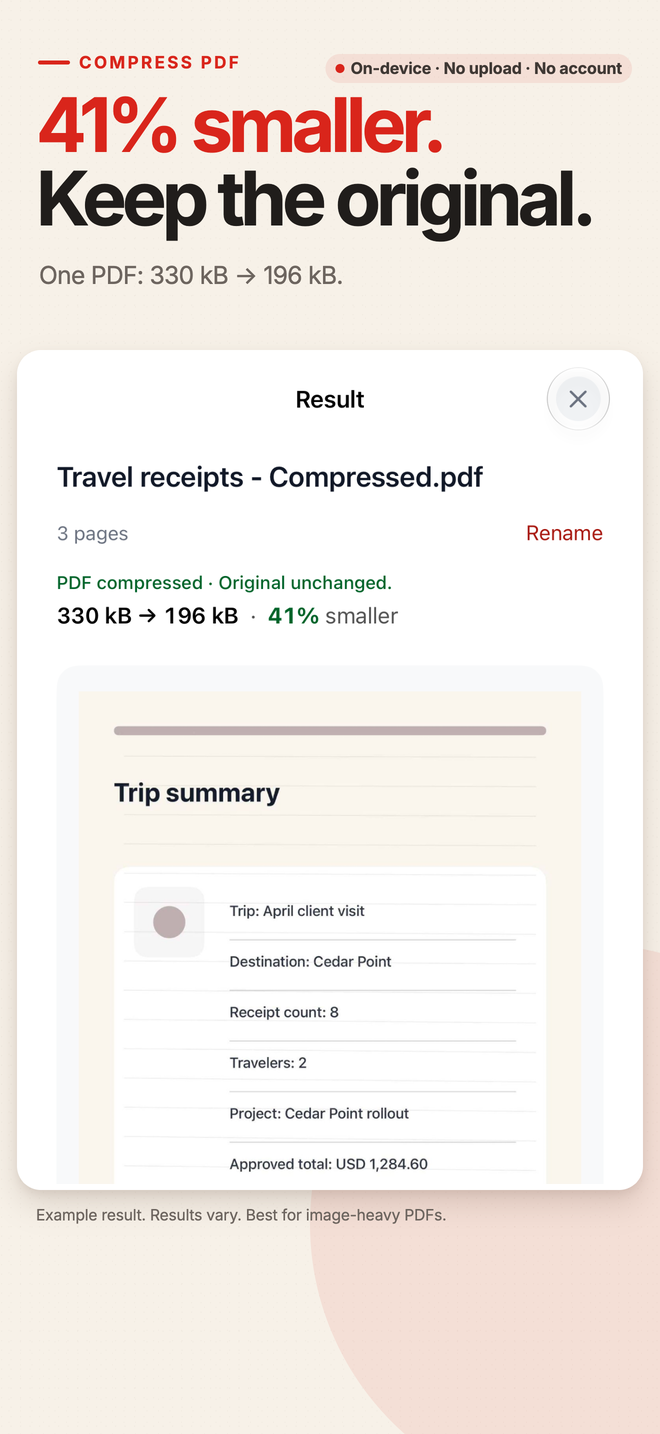
Choose Compress PDF in PDF Tools, select the file and a compression preset, then compare and save the new copy. Results vary: image-heavy PDFs usually have the most room to shrink, while text-only PDFs may change very little.
Compress a PDF in four steps
- Open Compress PDF
Start PDF Tools and choose Compress PDF from the home screen.
- Select the document
Pick the PDF from Files. The app reads only the file you choose.
- Choose a preset
Start with Balanced when you are unsure, or choose a different preset depending on whether quality or the smallest practical file matters more.
- Review and save the result
Let the task finish, compare the output, then save or share the new copy. Your source PDF remains unchanged.
Pick a preset, then judge the actual file
Standard
Use Standard when preserving more visual detail matters and you only need a lighter reduction. Always check the output before sending an important document.
Balanced
Balanced is a sensible first attempt for everyday sharing when you want a compromise between readable images and a smaller file.
Smallest File
Choose Smallest File when attachment size matters most. Stronger image reduction can affect visible quality, so review pages at a useful zoom.
All presets are free
Standard, Balanced and Smallest File are all available in the free path. Compression is not locked behind Pro, and the result is written as a new file.
Image-heavy files benefit most; every result is different
Scans and photo PDFs are the best candidates
PDFs made from camera photos, scans or many large images usually contain more image data that can be reduced before email or sharing.
Text-only PDFs may barely shrink
A document that already stores mostly text and compact graphics can have little redundant data. Compression may produce only a small change, or no useful reduction.
No fixed percentage is promised
The original encoding, image resolution and chosen preset all affect the result. A reduction shown in a screenshot is an example, not a guarantee for your file.
The original stays untouched
PDF Tools writes a separate compressed copy, so you can compare it with the source and keep the original if the trade-off is not worthwhile.
Compression happens on your iPhone
No document upload
Once the PDF is available on your device, the task works offline. File names, page thumbnails and document text are not sent to a compression server.
A focused compressor, not an editor
Compress PDF does not edit page text, run OCR, fill forms or add signatures. Password-protected or damaged files may need separate attention before they can be processed.
Compress PDF FAQ
Which preset should I try first?
Balanced is a practical starting point. If the file is still too large, try Smallest File and review the image quality.
Why did my PDF barely get smaller?
Text-heavy or already-optimized PDFs may contain little image data to reduce. Results depend on the source file.
Are all compression presets free?
Yes. Standard, Balanced and Smallest File are all available without Pro.
Does compression overwrite the original?
No. PDF Tools saves a new result, leaving the selected source PDF unchanged.
Create or combine before compressing
Try a smaller copy before you email the PDF
Download PDF Tools and use any compression preset for free. Processing stays local, and your original document is not overwritten.
 See all PDF Tools features →