How to split a PDF on iPhone
Use Split PDF in PDF Tools to extract selected pages into one new PDF, or save every page as a separate file. Choose the mode before creating the outputs. Processing runs on your iPhone once the source file is available locally, and your original PDF stays unchanged.
Choose the pages and the kind of output
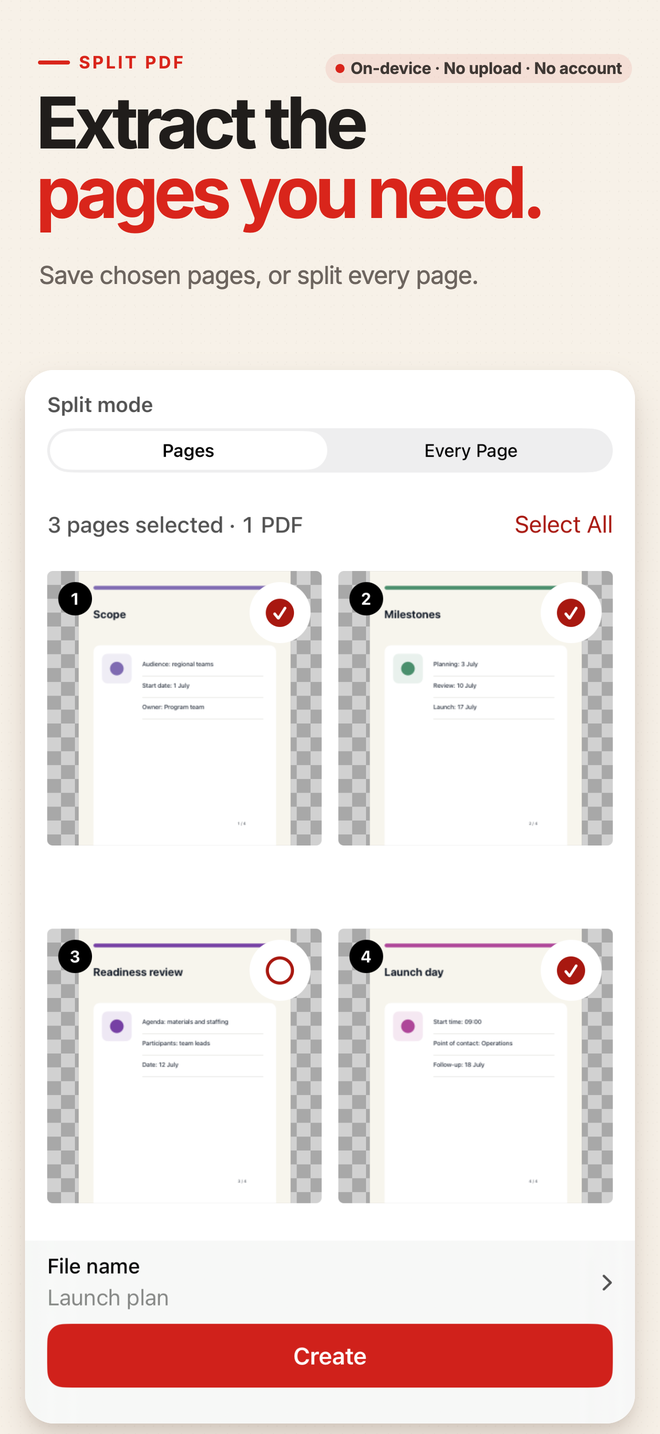
- Open Split PDF and choose a file
Select the source PDF through Files. If it is stored in a cloud service, make sure the file is downloaded before relying on offline processing.
- Choose Pages or Every Page
Pages combines your selection into one new PDF. Every Page creates a separate single-page PDF for each page in the source.
- Select the pages you need
In Pages mode, tap the page thumbnails or enter a range such as 2-4, 7. Review the selected-page summary. Every Page uses the whole document.
- Check the name and create
Review the file name and the number of PDFs to be created, then start the task. The free allowance is based on the number of output files.
- Preview and save the outputs
Preview the result and use Save to Files to keep it. When the task creates several PDFs, save the outputs individually. Check that the files you need are saved before leaving the result screen.
One extracted PDF or a file for every page?
Extract a selection into one PDF
For a 20-page document where you only need pages 2-4 and 7, choose Pages and select those pages. The result is one new PDF, so it counts as one output.
Make separate single-page files
Every Page turns each source page into its own PDF. A four-page source produces four outputs; a six-page source would exceed the free five-output allowance.
Free and Pro
Free supports splitting into up to five output PDFs per task, without a watermark. This is an output-file limit, not a five-page input limit. Optional one-time Pro offers higher limits; device and file constraints still apply.
Pages from several source files
Split PDF starts from one source PDF. Use Select Pages when you want to take pages from different PDFs and combine them into a new document.
The source stays unchanged
Work from a local file
PDF Tools reads the PDF you choose and creates separate results. Once the source is on the device, processing needs no account or upload. The app has no ads or analytics SDKs.
Extraction is not text editing
Split PDF extracts pages; it does not rewrite text, run OCR, fill forms, or convert a PDF to Word. A password-protected source requires the password; this is not a password-recovery tool.
Questions about Split PDF
Can I extract nonconsecutive pages?
Yes. In Pages mode, select the thumbnails or enter a page selection such as 2-4, 7. Those selected pages become one new PDF.
Does free mean only five source pages?
No. The free Split limit is up to five output PDFs per task. Pages mode creates one PDF from the selection, while Every Page creates one output for every source page.
Will splitting change my original PDF?
No. The task writes new output files and leaves the original unchanged. Save the outputs you want to keep.
Can I split without uploading a document?
Yes. Once the source PDF is available on your iPhone, the split runs locally. Accessing a cloud-stored source or saving to a cloud destination may use that service’s connection.
Related PDF guides
Keep only the PDF pages you need
Extract selected pages or split into separate files on your iPhone. Free supports up to five output PDFs per split task, with no watermark.
This guide shows the iPhone workflow. Android users can get PDF Tools on Google Play; platform screens may differ.