How to rearrange, rotate or delete PDF pages on iPhone
Use Organize in PDF Tools: see all pages in a clear thumbnail grid, drag to change their sequence, rotate sideways pages right-side up, and remove pages you don't need before exporting. All processing happens locally on your iPhone without uploading files.
Reorder and clean up pages on iPhone
- Open Organize
Launch PDF Tools on your iPhone and tap Organize in the tool menu.
- Select your PDF
Pick the document you want to edit from Files, iCloud Drive or your local storage.
- Rearrange, rotate or remove
Press and drag thumbnails to change page order. Tap a page to rotate it 90 degrees or tap the trash icon to delete unwanted pages.
- Save the organized PDF
Tap Done to generate the new reorganized document, then save it to Files or share via the share sheet.
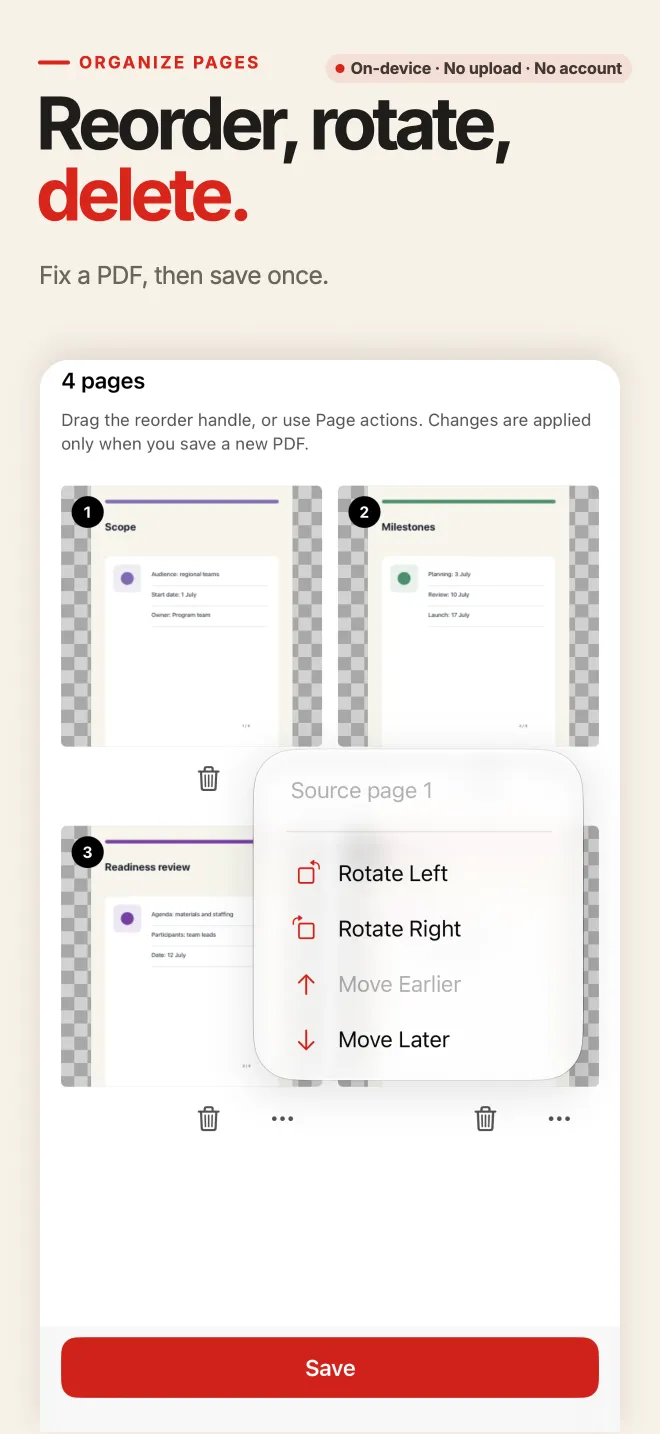
Visual grid editing with generous free limits
Free up to 50 pages
Organizing documents up to 50 pages is completely free in PDF Tools, with no watermark or ads. If you frequently handle books or huge catalogs over 50 pages, an optional one-time Pro purchase raises the limit.
Fix sideways and upside-down pages
Scanned documents often include pages scanned in landscape or upside down. You can rotate individual pages in 90-degree steps.
Delete blank and extra pages
Easily remove accidental blank pages, duplicate cover sheets, or unnecessary annexes before sharing your final document.
Original file remains untouched
PDF Tools writes out a clean new PDF file reflecting your desired layout. Your source document in Files is never modified or overwritten.
Local processing and clear functional boundaries
No documents sent to the cloud
All page reordering, rotation rendering, and document compilation take place on your iPhone. No cloud servers are involved, and no account is required.
What Organize does not do
Organize manages page-level structure (reordering, rotation, deletion). It does not edit text inside the page, change embedded images, or run OCR.
Rearrange PDF Pages FAQ
Can I rotate just one page without rotating the whole file?
Yes. The thumbnail grid allows you to select and rotate individual pages in 90-degree increments.
What is the difference between Organize and Split?
Organize rearranges, rotates, and trims pages within one document. Split extracts selected pages or divides one document into multiple separate PDF files. See the split guide.
Does organizing pages alter document content?
No. Reordering, rotating, and deleting pages only updates the document page structure without altering page contents.
Does the free version add a watermark?
No. Up to 50 pages are completely free and 100% watermark-free.
More ways to work with pages
Organize your PDF pages on iPhone
Download PDF Tools from the App Store. Reorder, rotate, and delete pages with a clean thumbnail grid directly on your iPhone.
This guide demonstrates the iPhone workflow. Android users can install PDF Tools via Google Play; interface details may differ.