How to password protect a PDF on iPhone
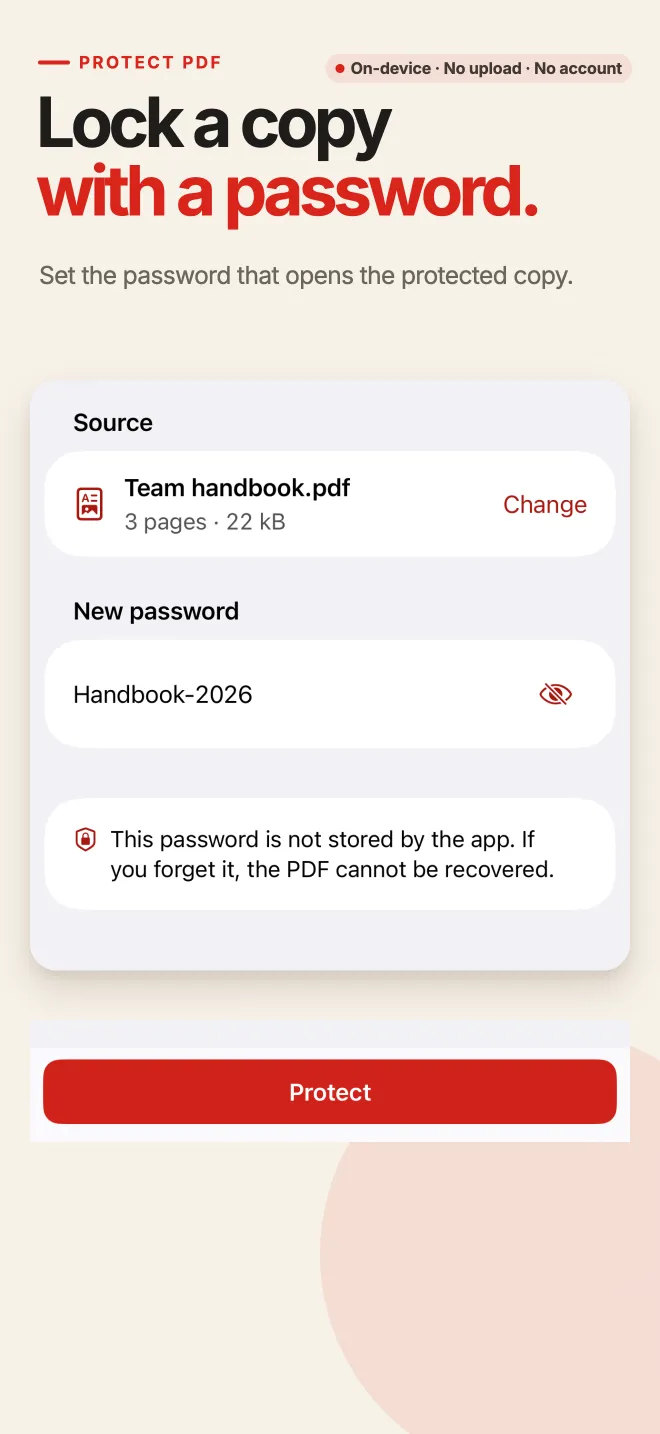
Use Protect in PDF Tools: choose any PDF from the Files app, enter your chosen password, and export an encrypted copy. Anyone opening the file must enter the password to view it. Encryption happens on your iPhone locally, with no account or upload required.
Encrypt a PDF document in four steps
- Open Protect
Launch PDF Tools on your iPhone and tap Protect on the home screen.
- Select your PDF
Pick the document you want to secure from the system Files app or iCloud Drive.
- Enter password
Type the password you want to assign to the document.
- Save the encrypted copy
Tap to generate the protected PDF, then save it to Files or send it securely via email or messaging apps.
Standard encryption, complete privacy, and no fees
Completely free and unmetered
Password protection is 100% free in PDF Tools. The free path has no page cap; system memory and file limits still apply, with no watermark or ads.
Standard cross-platform compatibility
Protected PDFs use standard PDF encryption supported by Adobe Acrobat, Apple Preview, web browsers, and Android PDF readers. Recipients can open it on any device by entering the password.
Keep track of your password
Standard encryption has no backdoor. PDF Tools cannot reset or recover your password if you forget it. Be sure to note your password in a safe place.
Your original file stays safe
PDF Tools writes an encrypted output copy without modifying the original document in your storage.
Passwords never leave your device
No cloud transmission
Unlike web-based encryption tools that upload files to external servers, PDF Tools performs all encryption locally using iOS native cryptographic frameworks.
No logs or tracking
The app does not record entered passwords, track filenames, or send telemetry data. Everything remains private to your device.
Password Protect PDF FAQ
Can recipients open this PDF on Windows or Android?
Yes. The file is encrypted using standard industry specifications. Any modern PDF reader on Windows, macOS, Android or Linux will prompt for the password to view the content.
Can I remove the password later if I change my mind?
Yes. PDF Tools includes an Unlock tool that removes password protection from any PDF as long as you enter the correct password. See the unlock guide.
Does this tool add a watermark?
No. Encrypted documents remain completely clean with no watermarks or advertising.
Can PDF Tools recover my password if I lose it?
No. There is no master key or recovery mechanism. Standard encryption protects the file completely against unauthorized access.
Organize before protecting
Protect your PDF documents on iPhone
Download PDF Tools from the App Store. Add secure password encryption to private documents locally with zero cloud upload.
This guide demonstrates the iPhone workflow. Android users can install PDF Tools via Google Play; interface details may differ.