How to remove password from a PDF on iPhone
Use Unlock in PDF Tools: select the protected PDF from Files, type in the current password, and generate a new unencrypted PDF copy. You never have to re-enter the password each time you open it. Processing happens entirely on your iPhone with no cloud upload.
Remove a PDF password in four simple steps
- Open Unlock
Launch PDF Tools on your iPhone and tap Unlock from the tool list.
- Pick the protected file
Select the password-protected PDF document from the system Files app or your iCloud Drive.
- Enter the valid password
Type in the existing document password. PDF Tools authenticates and decrypts the file structure locally.
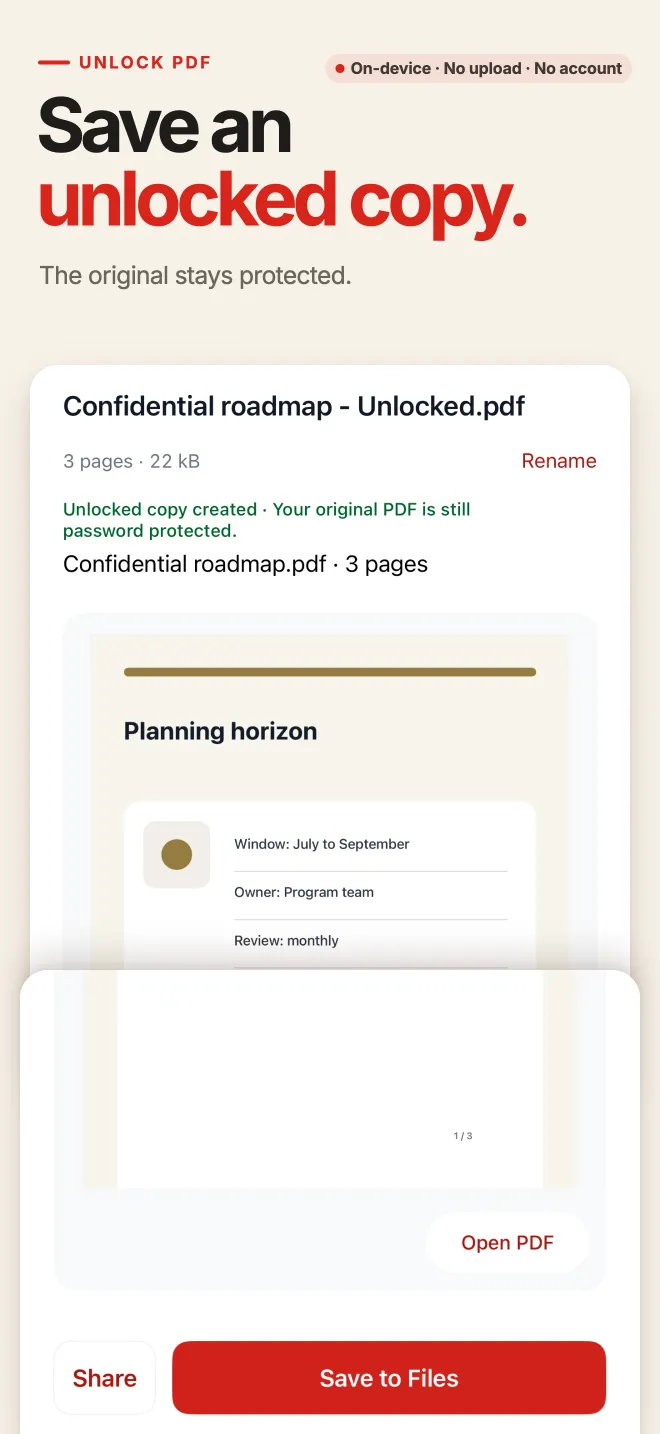
- Save the unlocked copy
Check the preview, then save the new unprotected PDF back to Files or share it via the iOS share sheet.
Free, unmetered, and built with clear security boundaries
Completely free with no quotas
Removing a password from a document you own is 100% free in PDF Tools. There are no page limits, file size limits, or watermarks attached to the output file.
You must know the password
PDF Tools is a productivity utility, not a cracking program. You must supply the correct password. It does not brute-force passwords, bypass encryption, or recover forgotten credentials.
Original document is never overwritten
The app reads your encrypted PDF, removes the security envelope, and writes out a brand new PDF file. The original protected file remains safely intact in your storage.
Permanent convenience for bank statements & records
Financial statements, tax documents, or salary slips often come protected with a birth date or ID number. Unlocking them once allows hassle-free archival and printing.
Your document and password stay on your device
No passwords sent over the network
Online PDF unlock websites require uploading both your sensitive document and your password to external servers. PDF Tools decrypts everything directly on your iPhone using iOS system security libraries.
Zero analytics and no accounts
PDF Tools does not log your password, collect document names, or transmit telemetry. No account creation is required to use Unlock.
Remove PDF Password FAQ
Can PDF Tools open a PDF if I forgot the password?
No. Standard PDF encryption is cryptographically secure. PDF Tools only decrypts files when you provide the valid password; it cannot recover lost passwords or crack protected files.
Is there any file size or page limit?
No. Unlocking is completely free and unmetered. You can remove passwords from large multi-page records without needing a Pro subscription.
Will the output PDF require a password when opened by others?
No. The generated copy is entirely unprotected and can be opened immediately in any PDF viewer or sent to printers without prompting for a password.
Can I add a new password back onto a PDF?
Yes. PDF Tools also includes a Protect tool to encrypt any PDF with a custom password when you need to send sensitive records securely.
More PDF tools on iPhone
Unlock your PDF documents on iPhone
Download PDF Tools from the App Store. Remove passwords from known files safely and permanently on your device without uploading files to the web.
This guide demonstrates the iPhone workflow. Android users can install PDF Tools via Google Play; interface details may differ.