How to convert HEIC and JPG photos to PDF on iPhone
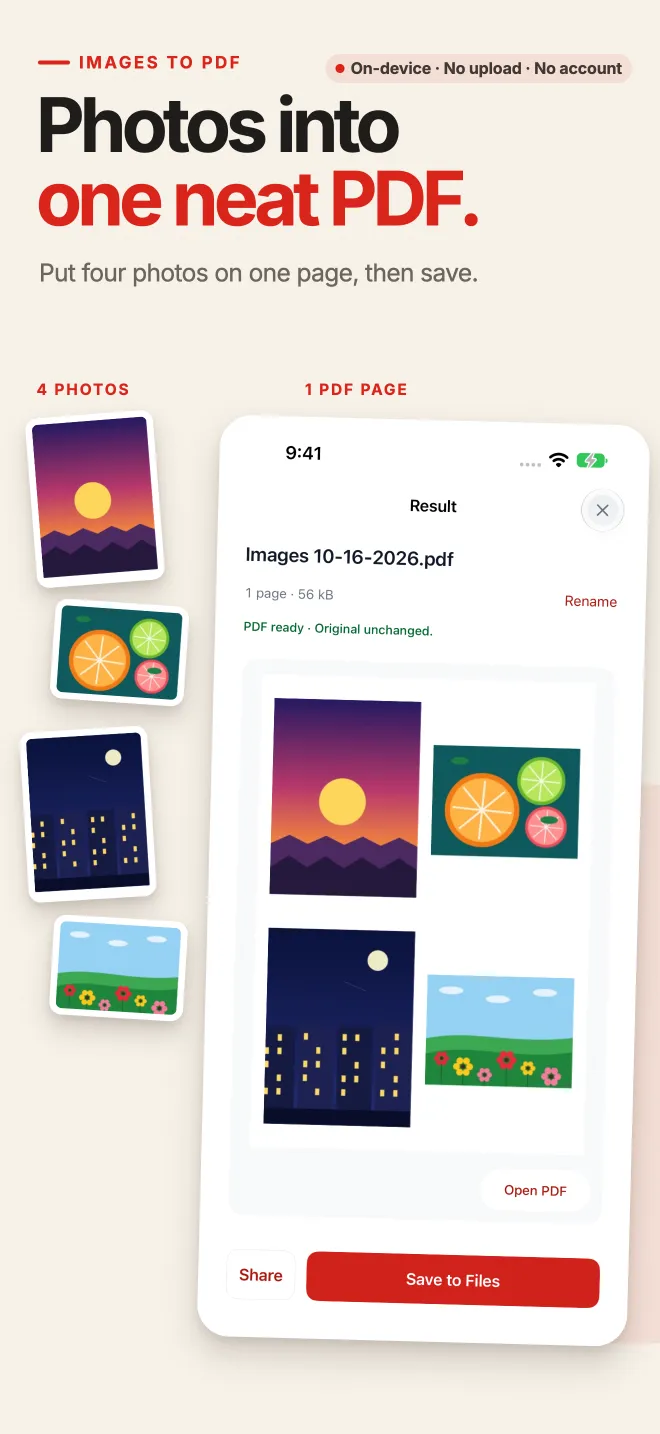
Use Images to PDF in PDF Tools: select HEIC, JPG or PNG pictures from Photos or Files, crop or auto-trim margins, choose a 1, 2 or 4-up page layout, and save one PDF. Processing is completed on-device, with no account or upload.
Convert HEIC and JPG files in five steps
- Open Images to PDF
Launch PDF Tools on your iPhone and tap Images to PDF on the home screen.
- Select your images
Pick HEIC, JPG, JPEG or PNG pictures from your Photos library or the Files app. Only selected files are accessed.
- Crop and trim blank space
Adjust framing manually or use auto-trim to detect and crop out surrounding white margins automatically.
- Configure your page layout
Choose A4 or US Letter paper size, set 1, 2 or 4 images per page, and drag to rearrange the sequence.
- Create and save the PDF
Tap to generate the PDF, inspect the result, and save it to Files or send it via the standard iOS share sheet.
Why iPhone photos need conversion, and how PDF Tools helps
Why HEIC files can be tricky
iPhone cameras capture photos in Apple's High Efficiency Image Container (HEIC) format by default. While HEIC saves storage, many application portals, government systems, and Windows PCs reject HEIC attachments. A standard PDF solves compatibility everywhere.
Combine mixed formats together
You can mix HEIC, JPG, JPEG and PNG images in a single batch without converting them beforehand. PDF Tools reads each format directly and writes a unified document.
Free use without watermarks
The free version converts up to 10 input images or scanned pages per PDF with zero watermarks or ads. Placing 2 or 4 images on one page still counts the input images. An optional Pro purchase raises this limit.
Your original photos remain intact
PDF Tools only reads the source files you select and produces an independent new PDF. Your camera roll and Files folders remain completely untouched.
Local processing, with a focused feature set
Your pictures never leave your iPhone
All image reading, cropping, layout rendering and PDF generation happen locally on your iPhone using Apple system frameworks. PDF Tools has no tracking SDKs, requires no login, and sends no files to external servers.
What this tool does not do
Images to PDF creates clean PDF documents from photos. It does not perform optical character recognition (OCR), convert photographed text into editable characters, edit existing PDF text, or fill forms.
HEIC and JPG to PDF FAQ
Can I mix HEIC and JPG images in the same PDF?
Yes. You can select any combination of HEIC, JPG, JPEG and PNG files from Photos or Files; they will be combined into a single PDF in the order you choose.
How is this different from iOS Print to PDF?
The system Print preview forces each picture onto its own full page with fixed margins. PDF Tools lets you place 1, 2 or 4 photos per page, crop each image, auto-trim margins, and reorder items before saving.
Does the free version add a watermark?
No. PDF Tools never adds watermarks, banners or advertising to your documents. Up to 10 images per PDF are completely free.
Can I scan physical papers directly instead of choosing photos?
Yes. You can launch the system document camera from the app home screen or inside Images to PDF to scan receipts or letters. See the scan-to-PDF guide.
Keep working with your PDF
Convert your iPhone photos to PDF
Download PDF Tools from the App Store. Convert HEIC and JPG pictures into neat, watermark-free PDFs with local on-device processing.
This guide demonstrates the iPhone workflow. Android users can install PDF Tools via Google Play; interface details may differ.