How to turn photos into a PDF on Android
Use Image to PDF in PDF Tools: choose pictures through Android’s system photo or file picker, or start a document scan, then crop, auto-trim and arrange them before saving one PDF. Processing stays on your Android device, with no account or upload.
Make a PDF from photos in five steps
- Open Image to PDF
Start PDF Tools and choose Image to PDF from the home screen.
- Add your images
Choose from Android’s system photo or file picker, or start a document scan. Only the items you select are read.
- Clean up each image
Crop by hand when you need precise framing, or use auto-trim to remove a blank outer border.
- Set the page layout
Choose A4 or Letter and place 1, 2 or 4 images on each page.
- Create, save or share
Generate the PDF, check the result, then save it through the Android system interface or share it with the Android system share interface.
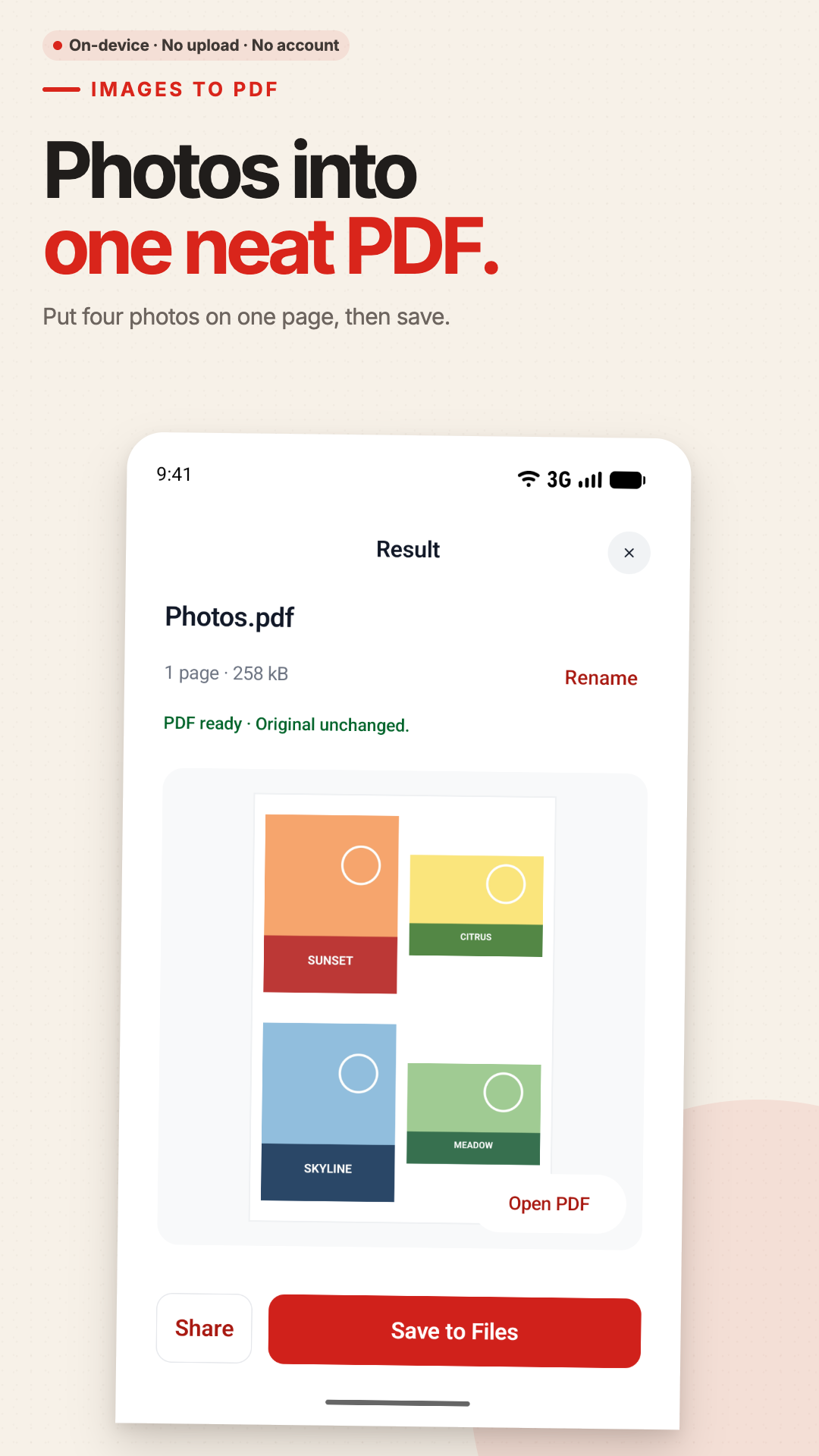
A practical layout, without overwriting your originals
Free use and page choices
The free path accepts up to 10 input images or scanned pages per PDF, with no watermark. That count is based on input images whether you place 1, 2 or 4 on each output page. Pro raises the limit.
Your source images stay unchanged
Crop and layout choices apply to the new PDF. PDF Tools reads the selected images and writes a separate result; it does not replace your photos or image files.
Start with the system picker
Choose JPG, PNG or HEIC/HEIF images through Android’s system photo or file picker. The app reads only the items selected for this task.
When PDF Tools is more useful
Use PDF Tools when you want image-by-image cropping, automatic blank-border trimming, a deliberate A4 or Letter layout, or 2-up and 4-up pages before saving.
Local processing, with a focused feature set
Your pictures are not uploaded
Once they are available on your device, images are processed locally. PDF Tools has no ads or analytics SDKs and does not require an account. Pro is a one-time Google Play purchase, not a subscription. Buying or restoring Pro may need internet access. Android and iOS purchases do not transfer.
What this tool does not do
Image to PDF creates a PDF from pictures; it does not run OCR, turn photographed words into editable text, edit text already inside a PDF, or fill PDF forms.
Photo to PDF FAQ
Can I convert HEIC, JPG or PNG images?
Yes. Choose supported image files through Android’s system photo or file picker, then arrange them into the new PDF.
Can I put several photos on one PDF page?
Yes. The layout can place 1, 2 or 4 images on each A4 or Letter page.
Does the free result have a watermark?
No. The free path supports up to 10 input images or scanned pages per PDF and does not add a watermark.
Can I scan paper documents too?
Yes. Start the document scanner from Home or from Image to PDF. Edges are detected and straightened on your device.
Keep working with the PDF
Make your next photo PDF on Android
Download PDF Tools for a free, no-watermark Image to PDF path. A one-time Pro purchase is optional and raises selected task limits.
Google Play name: JPG to PDF: Merge & Split PDF.
This guide is for Android. Using an iPhone or iPad? See the App Store version. Purchases do not transfer between platforms.