How to merge PDF files on Android
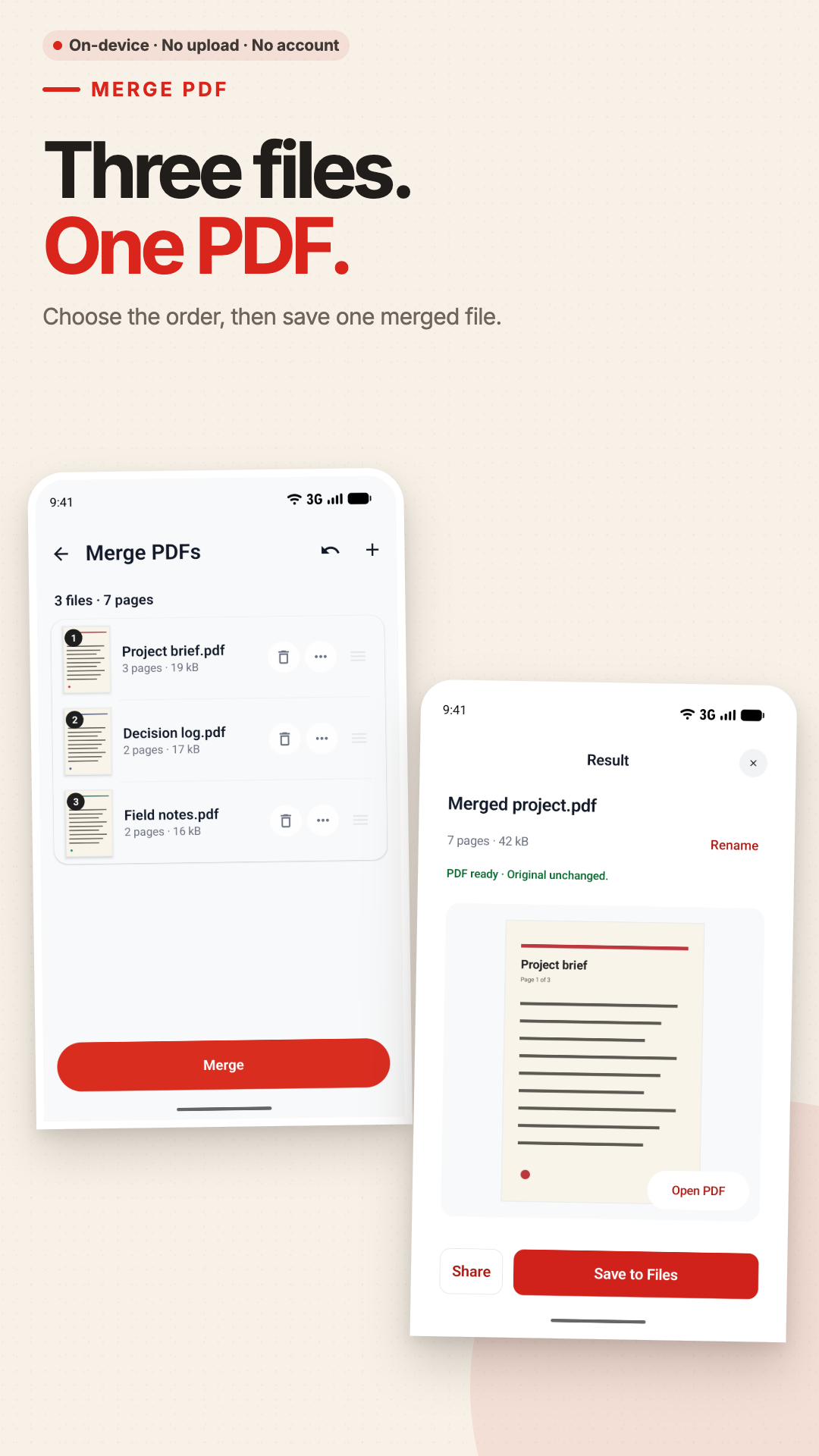
Open Merge PDF in PDF Tools, choose the documents, put them in the order you want, and save a new combined PDF. If you need only a few pages from each file, use Select Pages instead. Both workflows run on your Android without uploading the documents.
Merge several PDFs in four steps
- Choose Merge PDF
Open PDF Tools and select Merge PDF from the tool list.
- Add the source files
Pick the PDFs you want from the system file picker. Only the documents you choose are read.
- Set the document order
Reorder the files before processing so the combined PDF follows the sequence you need.
- Merge and save a new copy
Create the result, review it, then save or share it through the Android system interface. The source PDFs are not overwritten.
Use the workflow that matches the result
Merge PDF: keep every page
Use Merge PDF when each chosen document should appear in full. Reorder the files, then produce one new PDF in that file order.
Select Pages: build a custom document
Use Select Pages when you want individual pages from two or more PDFs. You can reorder, rotate or duplicate selected pages before saving the new result.
Free merge allowance
The free path combines up to 3 input files and up to 50 pages in one merge. Pro raises selected limits; technical limits still apply.
Originals remain intact
PDF Tools reads your selected files and writes a separate output. Changing the order for the result does not reorder or replace the source PDFs.
No upload queue, no claim of limitless merging
Documents stay on the device
Once files are available on your Android, merging works without an internet connection. PDF Tools has no account requirement, ads or analytics SDKs.
Unlock is not password recovery
To save a copy that no longer needs its open password, use Unlock PDF with the password you already know. It cannot recover or bypass an unknown password.
Pro raises app limits
Pro is a one-time Google Play purchase, not a subscription. It raises selected limits, not to unlimited processing. Buying or restoring Pro may require internet access.
Not a full PDF editor
Merging does not edit words inside pages, run OCR or fill forms. It combines existing PDF pages into a new document.
Merge PDF FAQ
Can I change the order before merging?
Yes. Reorder the selected files before processing so the output follows your intended sequence.
Can I take one page from one PDF and two from another?
Yes. Use Select Pages rather than Merge PDF, then arrange the chosen pages into a new document.
Will merging change my original files?
No. PDF Tools reads the originals and writes a new combined PDF.
Is PDF merging free?
The free path supports up to 3 files and 50 pages per merge. Pro raises limits through an optional one-time purchase.
Prepare or reduce the files
Combine PDFs without sending them to a website
Download PDF Tools to merge files locally on Android. Every tool has a free path, and Pro is an optional one-time purchase with higher selected limits.
Google Play name: JPG to PDF: Merge & Split PDF.
This guide is for Android. Using an iPhone or iPad? See the App Store version. Purchases do not transfer between platforms.